Unround: Why This Display Font Deserves a Spot in Your Design Toolkit
Choosing the right typeface is often the most overlooked step in visual design. Many creators rush straight into layout and color, assuming that any bold font will do the heavy lifting. But typography is the voice of your design. If the voice is off-key, the message gets lost. Enter Unround, a cool, modern, and highly adaptable display font that has quietly become a favorite among designers who value clarity without sacrificing style. Whether you are a seasoned graphic designer or a small business owner creating your first social media banner, understanding how to leverage Unround can elevate your work from amateur to professional.
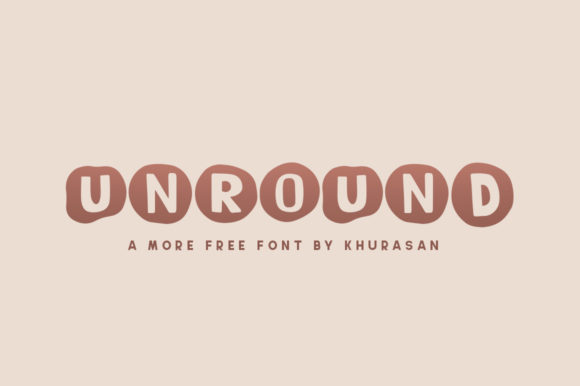
Unround is not just another sans-serif. It possesses a distinct geometric yet friendly character that makes it incredibly versatile. It works beautifully for posters, logos, magazine headers, book covers, and large-scale banners. However, simply downloading a free font and slapping it on a canvas is rarely enough to achieve high-quality results. There are specific nuances to using Unround effectively, and avoiding common pitfalls ensures that your designs remain legible, impactful, and aesthetically pleasing.
The Allure of Modern Simplicity
In an era where attention spans are shrinking, clean typography is king. Unround fits this need perfectly. Its rounded corners soften the rigidity of traditional geometric fonts, making it approachable while maintaining a sleek, contemporary edge. This balance is why it is so effective for branding. A logo needs to be memorable, but it also needs to feel trustworthy. Unround strikes that balance by offering a "soft" presence that doesn't scream for attention but demands respect through its clean lines.
For marketers and bloggers, this adaptability is crucial. You might use Unround for a catchy headline on a blog post, then switch to a more neutral body font for readability. The contrast between the expressive header and the functional text creates a visual hierarchy that guides the reader’s eye naturally. It is a subtle psychological cue that says, "This is important," without being aggressive.
Common Mistakes When Using Display Fonts
Even with a fantastic tool like Unround, poor execution can ruin a design. Here are the most frequent errors we see when people incorporate this font into their projects, and how to correct them before they impact your final output.
Ignoring Scale and Hierarchy
One of the biggest mistakes is using Unround for long paragraphs of body text. While it is readable, it is designed as a display font. Display fonts are meant to be seen from a distance or used in short bursts. If you force Unround into a dense block of text, you create visual fatigue. The human eye struggles to track lines of text that lack the subtle variations found in serif or standard sans-serif body fonts.
The Fix: Reserve Unround for headlines, titles, pull quotes, and UI elements like buttons. For body copy, pair it with a highly readable, neutral font like Open Sans, Roboto, or Lato. This combination allows Unround to shine as the star while ensuring your content remains accessible and easy to digest.
Poor Contrast and Color Choices
Because Unround has such strong, uniform strokes, it can disappear against busy backgrounds or low-contrast colors. A light gray Unround header on a white background is a recipe for invisibility. Conversely, placing it on a cluttered image without proper spacing can make the text look messy and unprofessional.
The Fix: Always check your contrast ratios. If you are using Unround on a photographic background, apply a subtle overlay or drop shadow to separate the text from the image. Use solid, bold colors for the font itself. Since Unround is modern and crisp, it pairs exceptionally well with monochromatic schemes or bold primary colors. Avoid pastel-on-pastel combinations unless you are aiming for a very specific, delicate aesthetic.
Neglecting Kerning and Tracking
Typography is not just about picking a font; it is about spacing. Many beginners set Unround at 72pt or larger and leave the default kerning alone. However, display fonts often require manual adjustment to look truly polished. Letters that touch too closely can feel cramped, while letters that are too far apart can lose their structural integrity.
The Fix: Zoom in. When working on logos or large banners, zoom in to 100% or higher to inspect the space between characters. Adjust the tracking (letter-spacing) slightly wider than you think you need. Unround benefits from a bit of breathing room, which enhances its modern, airy feel. Tighter spacing can work for tight, compact logos, but for general headings, a slight increase in tracking adds elegance.
Evaluating Unround for Your Specific Needs
Before you commit to Unround for a major project, consider the context. Is your brand serious and corporate? Or is it playful and creative? Unround leans towards the latter. It feels innovative, tech-savvy, and friendly. It might not be the best choice for a law firm or a traditional heritage brand, where serif fonts often convey stability and history.
- Check the Weight Variations: Ensure the version you download includes multiple weights (Light, Regular, Bold). Having access to different weights allows you to create dynamic layouts within the same font family, adding depth without introducing new typefaces.
- Verify Licensing: Even though Unround is often available as a freebie, always double-check the license file included in the download. Some free fonts are restricted to personal use only. If you are designing for a client or a commercial product, ensure you have the right to use it commercially to avoid legal issues later.
- Test Across Devices: If you are using Unround for web design, test how it renders on mobile screens. Large display fonts can sometimes break layout constraints on smaller devices. Ensure your CSS or design settings allow for responsive scaling so the font remains legible and proportional across all screen sizes.
Practical Applications and Inspiration
To get the most out of Unround, think about where it naturally fits in your workflow. Here are a few realistic scenarios where this font excels:
- Social Media Graphics: Create eye-catching quote cards or announcement posts. The bold weight of Unround grabs attention in a crowded feed, while its clean lines ensure the message is understood instantly.
- Event Posters: For workshops, webinars, or local events, Unround provides a modern backdrop that feels organized and professional. Pair it with vibrant accent colors to highlight dates and locations.
- Podcast or YouTube Thumbnails: Text on thumbnails needs to be huge and legible even at small sizes. Unround’s clear letterforms prevent ambiguity, ensuring viewers know exactly what the content is about before they click.
By treating Unround as a strategic tool rather than just a decorative element, you unlock its full potential. It is adaptable, free, and visually striking. Avoid the common traps of poor spacing, wrong usage contexts, and licensing oversights. Instead, focus on pairing it wisely, adjusting your spacing meticulously, and using it to enhance communication rather than distract from it. With these practical steps, you can create designs that are not only lovely but also effective and professional.